Heure, fuseau horaire
English
Français
Deutsch
Español
日本語
繁體
简体
Português
Italiano
Русский
Le temps du monde , l'heure, le fuseau horaire, fuseau horaire du monde , Horloge
Area
Amérique du Nord
Anguilla
Antigua-et-Barbuda
Les Bahamas
Barbade
Belize
Bermudes
Les Îles Vierges britanniques
Le Canada
Îles Cayman
Le Costa Rica
Le Cuba
Curaçao
Dominique
République dominicaine
Le Salvador
Grenade
La Guadeloupe
La Guam
Le Guatemala
Le Honduras
Jamaïque
Le Mexique
Montserrat
Le Nicaragua
Îles Mariannes du Nord
Le Panama
Porto Rico
Saint-Kitts-et-Nevis
Sainte Lucie
Saint-Pierre-et-Miquelon
Saint-Vincent-et-Grenadines
Îles Turques et Caïques
LES Etats-Unis
Les USA Îles Vierges
Amérique du Sud
Argentine
Aruba
Bolivie
Brésil
Chili
Colombie
Équateur
Îles Falkland
Guyane française
Guyane
Le Paraguay
Pérou
L'Uruguay
VenezuPela
Le Venezuela
L'Europe
Albanie
Andorre
Arménie
Autriche
Bélarus
Belgique
Bosnie
Bulgarie
Croatie
Chypre
République tchèque
Danemark
Estonie
Îles Féroé
Finlande
La France
Allemagne
Le Gibraltar
Grèce
Hongrie
Islande
Irlande
Italie
Kosovo
Lettonie
La Liechtenstein
Lituanie
Le Luxembourg
République de Macédoine
Malte
Moldavie
Le Monaco
Monténégro
Pays-Bas
Norvège
Pologne
Le Portugal
Roumanie
Russie
Saint-Marin
Serbie
Slovaquie
Slovénie
Espagne
Suède
Suisse
Turquie
LE R-U
L'Ukraine
Vatican
Australie Pacifique
Amérique Samoa
Australie
îles Cocos
Îles Cook
Fidji
Polynésie française
Le Kiribati
Îles Marshall
Micronésie
Le Nauru
Nouvelle-Zélande
Niue
Île Norfolk
La Palau
Papouasie-Nouvelle-Guinée
Îles Pitcairn
Îles Salomon
Le Tonga
Le Tuvalu
Le Vanuatu
Wallis et Futuna
Asie
L'Afghanistan
Azerbaïdjan
Le Bahrain
Le Bangladesh
Bhoutan
Le Brunei
Cambodge
Chine
Bande de Gaza
Géorgie
Hong Kong
Inde
Indonésie
L'Iran
Irak
Israël
Japon
Jordanie
Kazakstan
Koweït
Kirghizistan
Les Laotiens
Liban
Macao
Malaisie
Mongolie
Myanmar
Népal
Nord Corée du Sud
L'Oman
Le Pakistan
Philippines
Le Qatar
Arabie saoudite
Singapour
Corée du Sud
Le Sri Lanka
Syrie
Taiwan
Tadjikistan
Thaïlande
Timor
Turkménistan
Émirats Arabes Unis
Ouzbékistan
Le Vietnam
La Cisjordanie
Yémen
Afrique
Algérie
L'Angola
Bénin
Le Botswana
Burkina Faso
Le Burundi
Cameroun
Cap-Vert
République centrafricaine
Tchad
Comores
Le Congo
République démocratique du Congo
Cote dIvoire Côte-d'Ivoire
Djibouti
Égypte
Guinée équatoriale
Erythrée
Éthiopie
Le Gabon
Gambie
Le Ghana
Le Kenya
Le Lesotho
Le Libéria
Libye
Le Madagascar
Le Malawi
Le Mali
Mauritanie
Maurice
Mayotte
Maroc
La Mozambique
Namibie
Le Niger
Le Nigéria
Français réunion
Le Rwanda
Sainte-Hélène
Sao Tomé-et-Principe
Sénégal
Les Seychelles
Sierra Leone
Somalie
Afrique du Sud
Soudan
Le Souaziland
Tanzanie
Le Togo
Tunisie
Ouganda
Sahara occidental
Zambie
Le Zimbabwe
Madrid - Madrid Le temps du monde , l'heure, le fuseau horaire, fuseau horaire du monde , Horloge
fuseau horaire standard:
UTC/GMT+1
L'heure d'été:
1 heure
fuseau horaire actuel:
UTC/GMT2
Fuseau horaire:
CEST
Installez l'outil de temps libre!
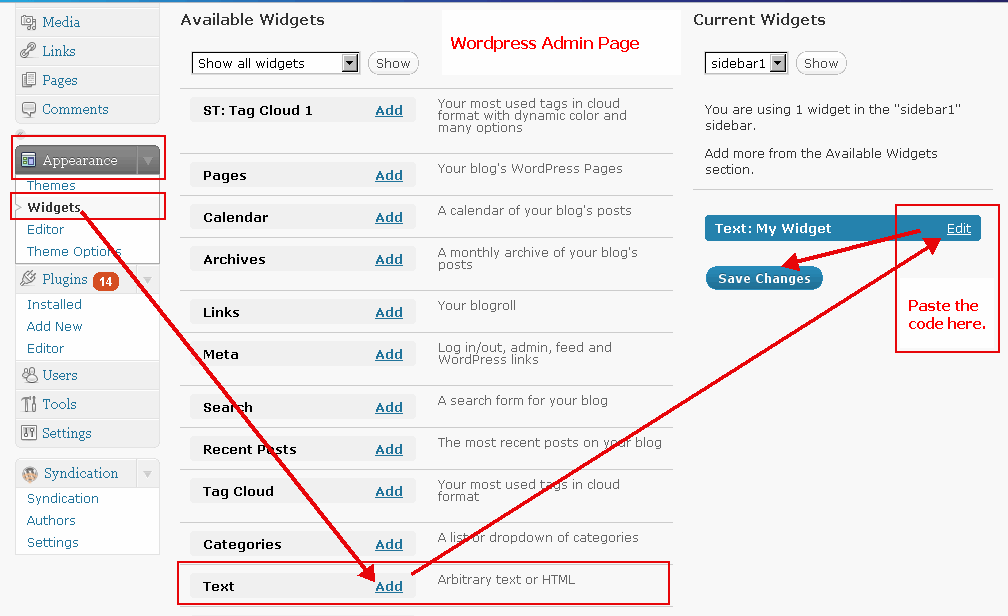
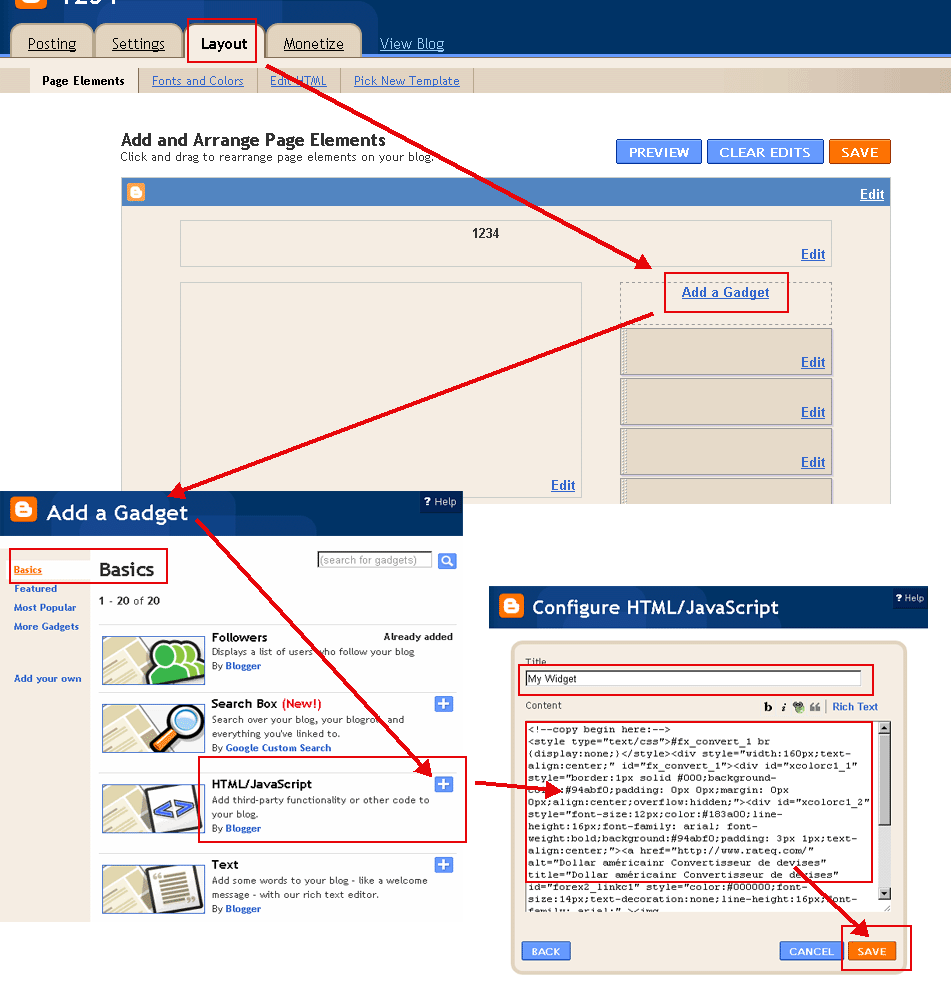
Appuyez sur le bouton copier et coller dans votre blog ou site web.
(S'il vous plaît passer à 'HTML' mode lors de la publication dans votre blog. Exemples:
Exemple WordPress
,
Exemple Blogger
)
Sélectionner la couleur(
?
):
Sélectionner la couleur(
?
):
Format de date:
Mai 21 2018 10:23:39 AM
21 Mai 2018 10:23:39 AM
5/21/2018 10:23:39 AM
21/5/2018 10:23:39 AM
2018/5/21 10:23:39 AM
2018-5-21 10:23:39 AM
Mai 21 2018 Lundi 10:23:39 AM
21 Mai 2018 Lundi 10:23:39 AM
5/21/2018 Lundi 10:23:39 AM
21/5/2018 Lundi 10:23:39 AM
2018/5/21 Lundi 10:23:39 AM
2018-5-21 Lundi 10:23:39 AM
2018 5 21 Lundi 10:23:39 AM
Lundi, Mai 21 2018 10:23:39 AM
Lundi, 21 Mai 2018 10:23:39 AM
Lundi Mai 21 2018 10:23:39 AM
Lundi 21 Mai 2018 10:23:39 AM
Madrid Heure
Copier sur le presse-papiers
<!--copy begin here:--> <style type="text/css">#fx_convert_1 br {display:none;}</style><div style="width:210px;text-align:center;" id="fx_time_1"><div id="xcolorc1_1" style="border:1px solid #000;background-color:#94abf0;padding: 0px 0px;margin: 0px 0px;align:center;overflow:hidden;"><div id="xcolorc1_2" style="font-size:12px;color:#183a00;line-height:16px;font-family: arial; font-weight:bold;background:#94abf0;padding: 3px 1px;text-align:center;"><a href="http://fr.timeq.org/Madrid" alt="Madrid - Madrid Heure" title="Madrid - Madrid Heure" id="xtime_link1" style="color:#111111;font-size:14px;text-decoration:none;line-height:16px;font-family: arial;" >Madrid Heure</a></div><div id="clockfrMadrid1" style="color:#111111;font-size: 1em;font-family: arial; font-weight:bold"></div><script src="http://fr.timeq.org/z.php?z=Europe/Berlin&id=clockfrMadrid1&t=1"></script></div></div> <!--copy end here:-->
Sélectionner la couleur(
?
):
Calendrier
<<
>>
Di
Lu
Ma
Me
Je
Ve
Sa
Calendrier|Heure
Copier sur le presse-papiers
<!--copy begin here:--> <style type="text/css">#mort_cal_1 br {display:none;} #calendar123 td.onToday{color:#ff0000;}</style><div style="width: 160px;text-align:center;"><div style="border:1px solid #000;background-color:#fefefe;color:#333333;padding: 0px 0px;margin: 0px 0px;align:center;text-align:center;overflow:hidden;"><div id="xcolorcs1_1" style="font-size:12px;color:#173a00;line-height:16px;font-family: arial; font-weight:bold;background:#94abf0;padding: 3px 1px;text-align:center;"><a href="http://fr.timeq.org/" alt="Calendrier|Heure" title="Calendrier|Heure" id="gooddaycal_link" style="color:#000000;font-size:14px;text-decoration:none;line-height:16px;font-family: arial;" ><img src="http://fr.timeq.org/day.gif" border="0" style="margin:0;padding:0;border:0;" />Calendrier</a> </div><DIV style="font-size:16px;"><DIV id=calendar123prev style="float:left;cursor:pointer;padding-left:5px;"><<</DIV><DIV id=calendar123next style="float:right;cursor:pointer;padding-right:5px;">>></DIV><SPAN id=calendar123year></SPAN> <SPAN id=calendar123month></SPAN> <TABLE cellSpacing=0 style="padding-left:12px;"><THEAD><TR><TD><font style='color:red;font-size:14px;'>Di</font></TD><TD style='font-color:black;font-size:14px;'>Lu</TD><TD style='font-color:black;font-size:14px;'>Ma</TD><TD style='font-color:black;font-size:14px;'>Me</TD style='font-color:black;font-size:14px;'><TD>Je</TD><TD style='font-color:black;font-size:14px;'>Ve</TD><TD><font style='color:red;font-size:14px;'>Sa</font></TD></TR></THEAD><TBODY id=calendar123></TBODY></TABLE><INPUT id=calendar123prevyear type=button value='<<<'><INPUT id=calendar123today type=button value='Cet'><INPUT id=calendar123nextyear type=button value='>>>'></DIV><script type="text/javascript" src="http://fr.timeq.org/z2.php"></script></div><a href="http://fr.timeq.org/" alt="Calendrier|Heure" title="Calendrier|Heure" id="gooddaycal_link2" style="font-size:12px;text-decoration:none;line-height:16px;font-family: arial;align:center;" >Calendrier|Heure</a></div> <!--copy end here:-->
Madrid - Madrid Information et Nouvelles:
 Calendrier